Be sure you never miss one of our emails.
We really value you as a customer and want to be sure you never miss one of our emails. The easiest way to accomplish this is to add us to your Address Book. By adding us to your Address Book this will ensure you receive emails from us, images load, and links are activated.
If you're unsure about how to add us to your Address Book, click on one of the links and read the directions. If the ISP you use is not listed below, you will need to designate us as a trusted sender. This is typically accomplished by adding our From Address to your Address Book, Contact List or Safe List.
Gmail, Gmail Standard and Gmail Promotions
1. While viewing a message from us, click on the down arrow, which is located in the top right corner of the email - just to the right of the "Curved Arrow Reply" button (see image below).

2. Select [Add John Doe to Contact list] by clicking on it (see image below).


Yahoo
1. While viewing a message from us, hover over the actions drop-down menu. Click on [Add Sender to Contacts] or use keyboard shortcut Shift + A (see image below).

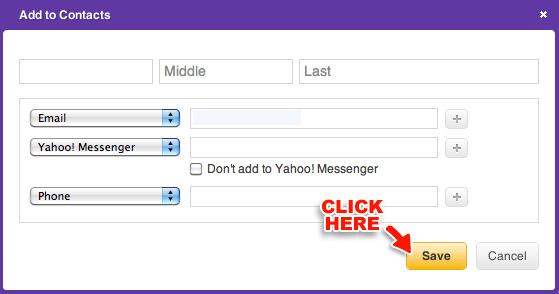
2. Click "Save", which will bring up a confirmation pop up. Click "Done" to complete the process and close the confirmation popup (see image below).
AOL
1. While viewing a message from us, it will display a "From Address" and "To Address" towards the top of the message. Immediately to the right of the "From Address" is a "+" icon/button. Click on the "+" icon/button and it will bring up the pop up below with the "From Address" already populated with the appropriate address
(see image below).

2. Click on Add Contact to complete (see image below).

Outlook
While viewing a message from us, it will display a "From Address" and "To Address" towards the top of the message. Immediately to the right of the "From Address" is a "+" icon/button. Click on the "+" icon/button and it will bring up the pop up below with the "From Address" already populated with the appropriate address
(see image below).

Hotmail
While viewing a message from us, the message will have a yellow box with "Show Content" and "trust [SENDER'S EMAIL ADDRESS]. Always Show Content". Click on "trust [SENDER'S EMAIL ADDRESS]. Always Show content", which will add the sender's address to your contact list (see image below).
